
Help center
Everything You Might Need, on One Page
98 guides grouped by what you are trying to do, the questions people ask most, the four step walkthrough and a way to reach a person who reads their email.
Install Grape, write your first note and bring your old notes in.
7 min read
Get started with Grape, from download to Pro
Install the desktop app, make a note and record your voice, upgrade to Pro, turn the recording into text, ask the AI about it and bring your notes to your phone, one step at a time.
Read the guide
2 min read
Install Grape on Windows, Mac and Linux
Which build to pick for your computer, what the first launch looks like, and how updates arrive.
Read the guide
2 min read
Update the desktop app
The notice in the corner, what Download and Not now do, and how to check for a new version yourself.
Read the guide
2 min read
See what's new after an update
The list of changes Grape shows once, on the first launch of a new version, on desktop and mobile.
Read the guide
2 min read
Install Grape on iPhone, iPad and Android
Where to get the mobile app on each platform, and what the first open looks like.
Read the guide
3 min read
Write your first note
How to insert things on desktop and mobile, plus the two organizing habits worth forming early.
Read the guide
2 min read
Import notes from Apple Notes
Bring your Apple Notes library across on a Mac without copying and pasting one note at a time.
Read the guide
2 min read
Import Markdown files
Move in from Obsidian, Bear or any app that exports Markdown, on desktop and mobile.
Read the guide
2 min read
Move Grape to a new computer
The two ways to carry your whole library to a new machine, with sync or with a backup.
Read the guide
Save a web page from Chrome, share anything into Grape from your phone and capture a note without opening the app.
3 min read
Clip a web page from Chrome
Install the Grape web clipper, save an article, a selection or a bookmark, and set what every clip should do by default.
Read the guide
3 min read
Share to Grape from your phone
Send a page, a link, a photo, a PDF or a recording from any app on iPhone or Android and get a note back.
Read the guide
2 min read
Capture a note without opening the app
Turn on the global quick capture shortcut, pick where captures land, and write a note from any app on your desktop.
Read the guide
3 min read
Put Grape on your iPhone home screen
Add the widgets, keep one folder, one note or your open checklist items a glance away, and tick things off without opening the app.
Read the guide
Formatting, tables, drawings, handwriting, images, PDFs, templates and everything else a note can hold.
4 min read
What the editor can do
Every block type, how inserting works on each platform, and which blocks are desktop only.
Read the guide
3 min read
Format text: headings, bold and lists
Text styles, headings, quotes and lists on desktop and mobile, plus the Markdown shortcuts.
Read the guide
2 min read
Create checklists and to do lists
Checkbox lists for tasks, how to put their items in a new order, and a pattern for a running to do note that actually gets used.
Read the guide
3 min read
Add and edit tables
Insert a table, add and remove rows and columns, and what the desktop cell menu can do extra.
Read the guide
2 min read
Highlight text in a note
Eight highlight colors on both platforms, and how to clear a highlight again.
Read the guide
2 min read
Draw inside a note
The drawing canvas for diagrams and sketches, and where to find it on each platform.
Read the guide
2 min read
Add images to a note
Paste, drag or pick images on desktop, attach from Photos on mobile, and view them full screen.
Read the guide
2 min read
Add PDFs to a note
Keep the source document in the same note as your notes about it.
Read the guide
3 min read
How Grape reads the PDFs in your notes
Grape reads the text of a PDF once, on your device, so the AI tools and search work from what it says without uploading the file again.
Read the guide
2 min read
Add audio files to a note
Insert audio you recorded elsewhere on desktop, play it anywhere, and transcribe it.
Read the guide
4 min read
Make mini apps in your notes
Describe a small app, like a todo list, a habit tracker or a quiz about the note, and the AI writes it into the note, where it remembers what you save in it.
Read the guide
5 min read
Create note templates
Save any note as a template, insert dates automatically with variables, and every date pattern you can use.
Read the guide
2 min read
Find text inside a note
Search within the open note, step through matches, and the shortcuts that drive it on desktop.
Read the guide
2 min read
Check your spelling
Turn spell check on, fix a word from its suggestions, teach it a word, and why it starts off.
Read the guide
4 min read
Write notes by hand
Handwriting notes: turning them on, creating one, the tools on the bar and how the pages work on iPad, iPhone, Android and desktop.
Read the guide
2 min read
Choose paper, page size and orientation
The five rulings, A4 or Letter, portrait or landscape, and where the defaults for new notebooks live.
Read the guide
3 min read
Search your handwriting and ask the AI about it
How the words on a handwritten page are read on the device, when it happens, what the AI can and cannot do with a notebook, and the limits.
Read the guide
2 min read
Write on a PDF and export a notebook as PDF
Import a PDF as pages to annotate, what happens to page size, and how to get a notebook out as a PDF.
Read the guide
Folders, subfolders, tags, pinning, sorting, sharing and getting deleted notes back.
3 min read
Create folders and subfolders
Build a folder tree, nest subfolders, rename and reorder them on desktop and mobile.
Read the guide
2 min read
Tag your notes
Type # to tag a note, and use tags for themes that cut across your folders.
Read the guide
2 min read
Pin a note to the top
Keep your daily notes at the top of the list on desktop and mobile.
Read the guide
2 min read
Sort and group your notes
Choose the sort field and order, and group the list into Today, Yesterday and older sections.
Read the guide
2 min read
Move notes between folders
Drag notes on desktop, swipe on mobile, and reorganize without losing anything.
Read the guide
2 min read
Select many notes at once
Select several notes in the list, then move, merge or delete them together.
Read the guide
2 min read
Recover a deleted note
Where deleted notes go, how to bring one back, and what emptying the folder really deletes.
Read the guide
2 min read
Note info, stats and backlinks
Word counts, read time, creation dates, and which notes link here.
Read the guide
4 min read
Lock a note
Encrypt a note with a password only you know, what a locked note can hold, and how the recovery key gets you back in.
Read the guide
5 min read
Share a folder or a note
Invite people by email to edit or read a folder or a single note, how edits merge when you collaborate, live typing on Pro, and what cannot be shared yet.
Read the guide
4 min read
Join a shared folder or note
Accept an invite in the app or from the email, what joining takes, and what happens when you leave or sharing pauses or stops.
Read the guide
3 min read
Type together in a shared note
On Pro, collaborate in a shared note in real time: see the others type, each at a cursor with their name on it, and what changes for people on Sync.
Read the guide
Connect notes to each other and see the whole library as a map.
Record inside a note or from the iPhone Lock Screen, capture calls on desktop and turn audio into text.
3 min read
Record a voice note
Record audio inside a note on desktop or mobile, and keep writing while it runs.
Read the guide
3 min read
Record system audio on desktop
Capture a call or a lecture playing on your computer, with or without your microphone.
Read the guide
3 min read
Transcribe a recording or audio file
Turn any recording into text, apply quick prompts to the transcript, and dictate on desktop.
Read the guide
4 min read
Record voice notes from the Lock Screen
Record on your iPhone without unlocking it, and Grape saves each recording as a new note, transcribed on Pro and Lifetime.
Read the guide
3 min read
Identify speakers in a recording
Split a transcript by who was talking, with one labelled paragraph per turn.
Read the guide
Grape AI, your own API keys, local models, the index behind semantic search and notifications when the AI is done.
3 min read
Set up AI: Grape AI or your own key
The two ways to power the AI features, and which plans include which.
Read the guide
3 min read
Add your own AI models and providers
Enable a provider, add the models it offers you, or add one by its id or from an OpenAI compatible endpoint.
Read the guide
3 min read
Run local AI models with Ollama or LM Studio
Keep AI on your machine with a local model on desktop, and what to expect from it.
Read the guide
3 min read
How note indexing works
What the index is, why semantic search needs it, and what Sync and Regenerate do.
Read the guide
4 min read
Get notified when the AI is done
Close the dialog or sheet while the AI works, keep using Grape, and get a message or a notification when the result is ready, even with the app closed on your phone.
Read the guide
Ask about your notes, let the agent edit them and shape how it answers.
4 min read
Chat with the AI about your notes
Open the chat on each platform, pick a model, attach files, and get answers grounded in your notes.
Read the guide
2 min read
Ask the AI about a PDF in a note
The AI reads the PDFs inside a note from text Grape keeps on your device, so the file is never attached or uploaded again.
Read the guide
2 min read
Ask the AI about an image in a note
The AI looks at the images inside a note, so it can read a whiteboard photo or a screenshot and work with what is in it.
Read the guide
3 min read
Let the AI agent edit and organize your notes
What the agent can create, change and move, and the safety net behind every change.
Read the guide
2 min read
Let the AI search the web
When the assistant can reach the internet, and which setups support it.
Read the guide
3 min read
Ask the AI to generate an image
Have the chat generate an image with the image model you enabled, then put it in a note.
Read the guide
2 min read
Set custom instructions for the AI
Pick a base tone and add standing instructions the assistant follows in every chat.
Read the guide
2 min read
Create prompt templates and quick prompts
Save the prompts you reuse and run them with one tap from chat and transcriptions.
Read the guide
5 min read
Make agents for the chat
Set up a chat once with its own instructions, model, notes, files and tools, then pick it in any chat.
Read the guide
4 min read
Schedule routines
Have Grape AI or one of your agents do something on its own at a time you set, once or on repeat, and read each run as a chat.
Read the guide
1 min read
Report an AI answer
Flag a response that is wrong or inappropriate, and what happens after you send it.
Read the guide
3 min read
What the AI remembers about you
How memory works, where to read and edit the list, and how to turn it off.
Read the guide
3 min read
Change settings from the chat
Ask the chat to turn a feature on or off, pick a theme or switch a model, and it changes the setting for you.
Read the guide
2 min read
Ask the chat about Grape
The chat answers how to do something in Grape, whether Grape can do it and what a plan includes, from the help center.
Read the guide
Find notes by keyword, by meaning or from Spotlight on iPhone and iPad, and find text inside a note.
2 min read
Search your notes
Keyword search across the whole library and the PDFs in it, the shortcut that opens it, and how to narrow results.
Read the guide
3 min read
Search your notes by meaning
AI semantic search finds notes by what they are about, even when the words do not match.
Read the guide
3 min read
Find your notes in Spotlight
Search your notes, folders, tags and AI chats from the Home Screen on iPhone and iPad, what Spotlight leaves out, and how to turn it off.
Read the guide
Turn any note into flashcards, a quiz or a mind map, or make your own by hand.
3 min read
Turn a note into flashcards
Write a deck of study cards yourself on any plan, or have the AI make one from a note, then review it and edit it inside the app.
Read the guide
3 min read
Quiz yourself on a note
Write your own multiple choice quiz on any plan, or have the AI write one from a note with difficulty levels and an adaptive mode.
Read the guide
3 min read
Create a mind map from a note
Write a mind map as an outline on any plan, or have the AI build one from a note, then explore it by expanding branches and edit it.
Read the guide
Turn a note into a presentation you can walk into a room with, a narrated video or a poster you can hand to someone who will not read it.
5 min read
Turn a note into a slide deck
Build a presentation yourself on any plan, or have the AI write one from a note, then edit the slides in place, present it or export a PDF.
Read the guide
3 min read
Turn a note into an infographic
Draw a poster from a note, pick the style, shape and quality, then insert it back or export it.
Read the guide
3 min read
Turn a note into a brainrot video
Narrate a note over a gameplay clip with burned in captions, and pick the voice, background and caption look.
Read the guide
Keep devices in step, keep copies of everything and get your data out.
4 min read
Sync your notes across devices
What syncs, when it runs, how much attachment storage each plan has, and what happens to your local database when you sign in.
Read the guide
4 min read
Sync with Dropbox
On Lifetime, keep every device in step through your own Dropbox: connecting each device, what travels, where the files go and what Grape never sees.
Read the guide
4 min read
Sync with Google Drive
On Lifetime, keep every device in step through your own Google Drive: connecting each device, what travels, the Grape Notes folder in your Drive and what Grape never sees.
Read the guide
3 min read
Back up your notes
Automatic daily backups, manual ones before big changes, and how long each kind is kept.
Read the guide
2 min read
Restore a backup
Roll your library back to a backup, and what to know before you do.
Read the guide
2 min read
Export your notes
Get a single note or the whole library out as Markdown, HTML or PDF.
Read the guide
4 min read
Use version history
Every note keeps its past versions, and a shared note shows who changed what. Preview them, restore one, and know the limits.
Read the guide
2 min read
Delete your data or your account
The two delete options, exactly what each removes, and what each one leaves alone.
Read the guide
5 min read
Connect ChatGPT, Claude or another AI app to Grape
Let an AI app you already use read and write the notes in your Grape account, what it can and cannot do, and how to disconnect it.
Read the guide
Language, themes, date formats, toolbars and keyboard shortcuts.
1 min read
Change the app language
Grape speaks eight languages, and switching takes two taps in General settings.
Read the guide
1 min read
Change the appearance and accent color
Light, dark or follow the system, plus seventeen accent colors to make it yours.
Read the guide
2 min read
Choose a theme
Twelve light and twelve dark presets repaint the whole app on Pro and Lifetime, and the choice follows you between devices.
Read the guide
2 min read
Change the date and time format
Pick how every date and time in the app is written, or define your own format.
Read the guide
2 min read
Customize the editor toolbars on desktop
The fixed toolbar, the floating selection toolbar and drag handles, each with its own switch.
Read the guide
2 min read
Arrange the desktop panels
Resize the four desktop panels, collapse the chat, and keep your layout across devices.
Read the guide
2 min read
Keyboard shortcuts on desktop
Every shortcut the desktop app answers to, from new notes to the hidden snake game.
Read the guide
What is free, what is paid, subscriptions and signing in.
4 min read
Free, Sync, Pro or Lifetime
What each plan includes and which one fits how you work.
Read the guide
3 min read
Manage your subscription
Change or cancel your plan, move from Sync to Pro, and restore a purchase on a new phone.
Read the guide
2 min read
Sign in and sign out
When you need an account, how signing in works, and what sign out does with local notes.
Read the guide
2 min read
Check how much AI you have used
Where to find your usage, what the bars mean, and when your allowance resets.
Read the guide
How to use it
Six Steps, About Ten Minutes
This is the whole onboarding. There is no workspace to design before you are allowed to write something.
Step 01
Download and open it
No account, no setup wizard, no workspace to design first. Choose where your notes live and start typing.
Step 02
Bring your old notes across
Import from Apple Notes, point Grape at a folder of Markdown files, or drag in the PDFs you keep reopening.
Step 03
Put everything in one place
Type, paste, record, attach, clip a page from Chrome or share one from your phone. Folders and tags are there when you want them and out of the way when you do not.
Step 04
Ask instead of scrolling
Open the agent and ask a question about your own notes. The answer comes back with the note it came from.
Step 05
Turn notes into the thing you needed
A summary, a deck of flashcards, a quiz, a mind map, or a clean export to send to somebody else.
Step 06
Put it on your other devices
Turn on sync and the same library shows up on your phone, while each device keeps its own daily backup.
Blog
Writing About Notes, AI and the App
Longer pieces about note taking, working with AI and how Grape gets built.
September 24, 2026
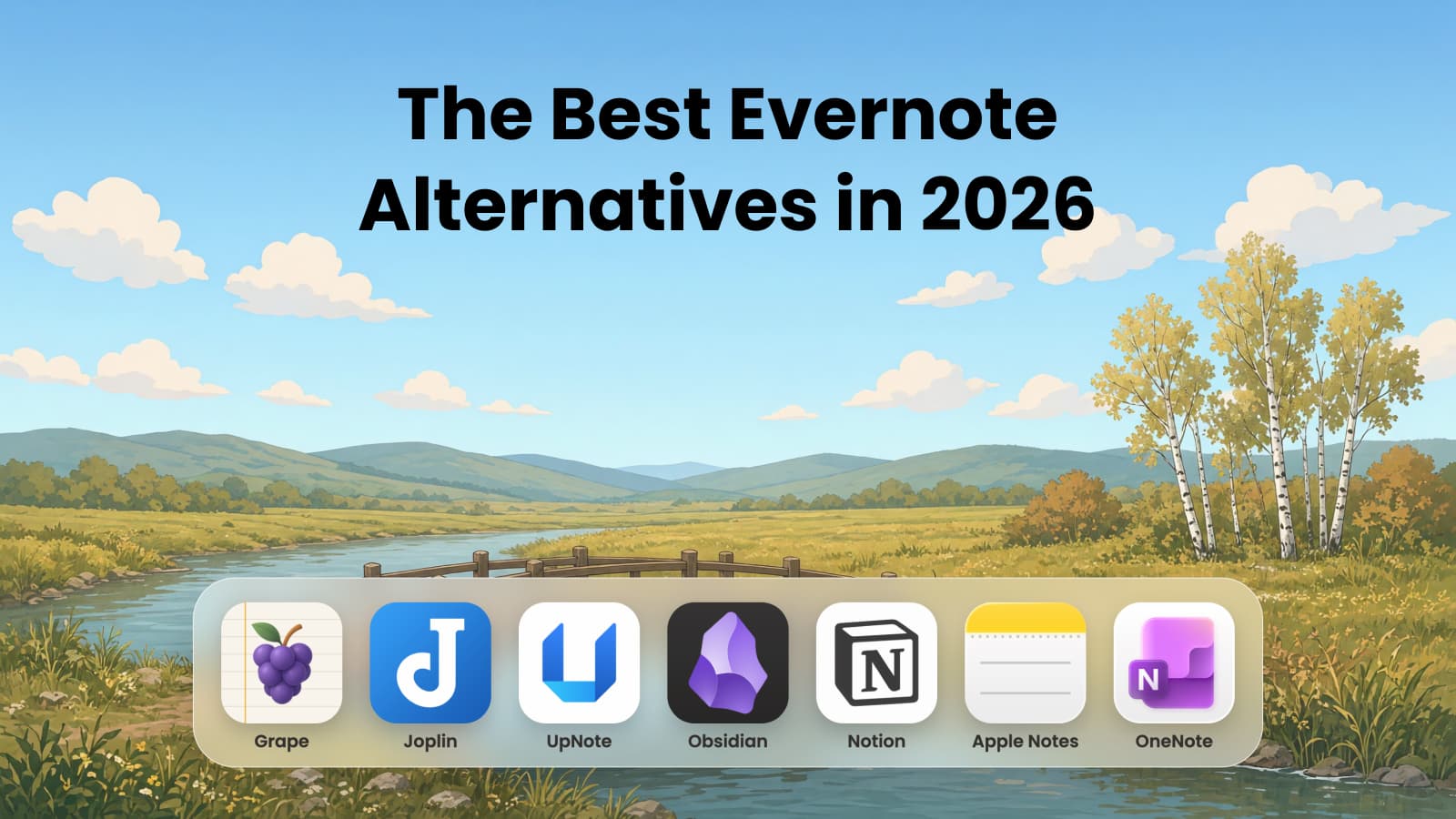
The Best Evernote Alternatives in 2026
Seven apps to move your Evernote notes to, compared on price, platforms, offline use, AI and what happens to an .enex file.
Read the post

September 18, 2026
The Best AI Note Taking App for Mac
Five tests to run on any Mac notes app in an afternoon: search by meaning, ask across notes, record a call, keep the notes local.
Read the post
September 11, 2026
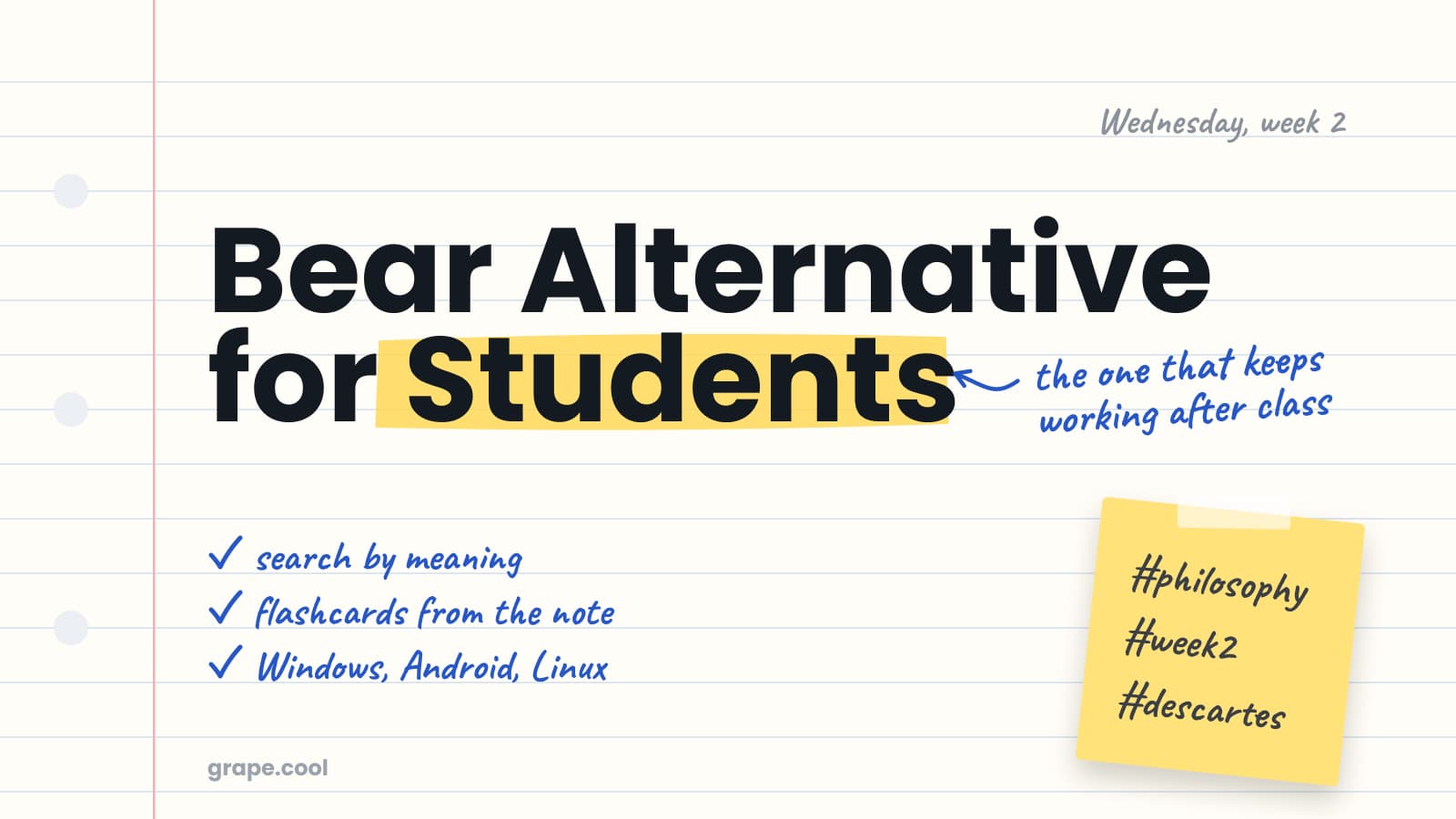
Bear Alternative for Students
Bear costs less than Grape and is a fine place to type a lecture. What it will not do is anything with the note after class.
Read the post
Still stuck
Write to us and a person answers
Bugs, billing, feature requests or a question the guides do not cover. Include your platform and version and it gets sorted faster.
Everything Above Is Easier With the App Open
Install Grape, follow the four steps, and the rest of the help center starts making sense in context.