
Grape for designers Sketch it and say why. Keep both in the same note.
Drawing canvas, screenshots, research and the reasoning behind a decision in one place, so the rationale survives longer than the file name.
Free. Offline. Your files stay on your machine.
Free plan, no account
Works offline
Mac, Windows, Linux, iPhone and Android
Your notes in a file you own
Bring your own AI, or use ours
Export as Markdown, HTML or PDF
01 Outcomes
Three problems, resolved
Not a feature grid. What changes when the sketch and the reasoning live in the same file.
01
The sketch is in one app and the reasoning is in another.
Draw the idea inside the note
An infinite canvas sits in the editor, so a wireframe and the thinking behind it stay together.
02
Six months on, nobody can say why the pattern was chosen.
Explain a decision six months later
Ask why a pattern was chosen and get the note where you argued it out.
03
Research sessions end as a folder of recordings nobody plays back.
Run research without a second tool
Record the session, get the transcript, and pull the quotes into the summary.
AI agent
Ask your notes. Get an answer.
Ask a project folder a question in plain language and get the answer with the note it came from, so six months after a decision you are reading your own words instead of hunting for them. The agent can file, tag and tidy while it is in there.
Summaries from your own words
A week of meeting notes becomes three bullet points you can send on.
Tidying stops being your job
Ask it to file the loose notes into folders and add the tags you already use.
Web search in the same chat
When the answer is not in your notes, it can look it up and write it in.
Memory
Tell it once. It remembers.
Most designers explain the same things to every new chat. Say once what you work on and how you want a project folder written up, and the agent keeps it for every chat after, in a list you can read and edit.
Facts caught on the way past
Say you run a bakery while asking about customers. The bakery is kept and the question is answered.
Read it, fix it, delete it
The whole list lives in Settings under Personalization, as sentences rather than a black box.
Forget is a real command
Say forget that in the chat and the memory is deleted, not hidden.
Semantic search
Find it by meaning, not by memory.
Describe a user flow the way you remember it and the right note comes back. No naming convention to keep up with across a project folder, and no scrolling through research sessions and critiques you filed months ago.
No naming convention to keep up
Your filing can be a mess. Search reads what the note is about.
Best match first
Results are ranked by how close they are to what you described.
Folders and tags when you want them
Structure helps, it is just no longer the only way back to a note.
Voice recording and transcription
Say it out loud. Keep it in writing.
Record research sessions and critiques straight into a note and Grape turns them into text you can search, quote and question, usually before you are back at your desk. On Pro it also says who said what.
Capture on the move
Talk into your phone on the walk back and read it at your desk.
Transcript and notes together
Your own scribbles sit above the transcript, in the same note.
Searchable the moment it lands
An hour of audio becomes text you can find six months later.
Map a whole product area before you touch the canvas.
Flashcards
Revise without making the cards.
Turn a project folder into a deck without writing the cards. The questions come out of what you captured yourself, which is the version that matters for the rationale.
The slow part is done for you
Writing the cards is what stops most people revising. Not anymore.
Ten minutes is enough
Short review sessions on the phone beat one long night before the exam.
Straight from your notes
No stranger on the internet deciding what matters in your course.
Adaptive quizzes
Find the gaps before somebody else does.
A quiz written from a project folder shows the difference between having read something and knowing it. Useful six months after a decision, and more useful the week before that.
Reading is not knowing
A quiz shows you the difference in about two minutes.
Targets the weak spots
Answers you miss come back around, the ones you know do not.
One note, one quiz
No question bank to build and no separate app to keep in sync.
Ten questions, not a hundred
Short enough to run before a lecture, long enough to tell you something.
Practice in a queue
The quiz is on your phone, so five spare minutes becomes revision.
Straight back to the note
Every question points at the line it came from, so you can go and reread it.
Mind maps
See how one topic hangs together.
A long note about a user flow becomes branches you can follow, which is a different pass over the same material than reading a project folder again.
- 1
Structure you cannot see in prose
Long notes hide their shape. A map puts it back on the surface. - 2
Revision that is not rereading
Walking a map is a different pass over the same material. - 3
Built from your note, not a template
The branches come from what you wrote, in your own words.
Brainrot videos
The note, as a video you cannot skip.
Turn a note about a user flow into a short narrated video, captions burning over a gameplay clip. The version of a project folder that gets watched to the end, because it looks like everything else on the feed.
The format that gets watched
Vertical video, a voice narrating, captions landing on the beat.
Pick the voice and the world
Six voices over forty clips, so two notes never make the same video.
Captions with a look
Twenty one caption styles, from TikTok classic to neon to retro VHS.
The script is your note
Written from what you wrote, so the video teaches your material.
Under a minute
Long enough to cover a topic, short enough to actually watch twice.
Saved in the note it came from
The finished video sits with the writing, ready to replay or send on.
Infographics
The note, redrawn as a poster.
One poster drawn from a note: the sections as panels, the numbers as a chart. The fastest way to put a user flow in front of someone who was never going to read a project folder.
A style for the audience
Corporate for the deck, hand drawn for the class, dark for the feed.
The shape the channel needs
A tall scroll for a phone, a landscape for a slide, a square for a post.
Made to leave the app
Export the poster and hand it to someone who will never read the note.
Slide decks
The note, ready to present.
A note about a user flow becomes the deck: a title, a section for each turn, bullets short enough to say out loud, a closing slide of takeaways. For designers it is the presentation a project folder was always going to have to become.
Written in the order you would say it
A title, sections where the note changes subject, and a closing slide of takeaways.
Edit on the slide, not in a form
Double click a line to rewrite it, drag a part to move it, hide what does not belong.
Pictures where they help
Grape draws a picture for the slides that suit one and leaves a quote alone.
Graph view
See the whole library at once.
See every note you have written about a user flow and the ones you forgot were connected. Most designers find a theme running through a project folder that they never filed as one.
Connections you did not plan
Two notes from different months turn out to be about the same thing.
Links do the work
Link note to note as you write and the map fills itself in.
Where your attention went
Note stats show what you have actually been writing about.
Drawing canvas
Draw the part words cannot carry.
Some of a project folder is not sentences. Put a user flow on an infinite canvas inside the note, right next to the writing that explains it.
Diagrams without a second app
Boxes and arrows are two clicks away instead of a context switch.
Sketch, then explain underneath
The caption you write is what makes the drawing findable later.
Draw with a pencil in hand
Rough it out on the phone, tidy it up at the desk.
Handwriting notes
Write it by hand. Ask it like text.
Write research sessions and critiques by hand on pages of ruled paper and Grape reads the words off the page on the device itself, so a page of a project folder in your own hand turns up in search like any typed note and the agent can quote it.
Paper that behaves like paper
Pen, highlighter, eraser, shapes and text boxes on pages that stack the way a notebook does.
Your handwriting, searchable
The words are read off the page on the device itself, and nothing leaves it to do so.
The agent reads your pages
Ask what the lecture said on Tuesday and the answer comes from the ink.
Write on the slides
Import a PDF and annotate it page by page, then export the lot back out as one.
Page forty is a tap away
A navigator shows the whole notebook as thumbnails, with a page added or removed from there.
Open the notebook at the desk
The pages sync like any note and open in the desktop app, where you can add to them.
Themes
Paint the app the way you like it.
Twenty-four themes repaint the whole app around a project folder: the panels, the editor, the drawings and the notebook paper. Pick a light one for the day and a dark one for the late shift, so the app looks right six months after a decision too, and both follow you to every device.
The palettes you already know
Nord, Dracula, Solarized, Catppuccin, Gruvbox, Rosé Pine, GitHub, One, Ayu, Everforest, Flexoki and Monokai, mapped onto every part of the app.
Paper, for long afternoons
A warm, low contrast page for reading and writing for hours without the glare of a white screen.
Midnight, for the small hours
True black, so an OLED screen switches its pixels off and the note is the only thing lit.
Web clipper for Chrome
Clip the page. Keep it as a note.
A page worth keeping goes into Grape as a note, with the images and the source line, filed next to a project folder. Ask it questions later the way you would ask anything else you wrote.

1Clip it where you are reading
2It is filed before you switch windows
Three ways to take a page
The readable article, only the part you highlighted, or just the title and the link.
Filed before it lands
Pick the folder and the tags in the panel, or set a default once and never see it again.
The pictures come too
Grape downloads every image into the note, so it reads offline and after the page is gone.
Share sheet
Share it to Grape. It is a note now.
Share a page from Safari or a file from any app on your phone and it lands as a note beside a project folder, with the source under the title, ready to read at your desk.
1A page in Safari
2Two taps to share it
3A note in Grape
Two taps from Safari
Tap share, tap Grape, tap Save. The page is a note before you are back in the browser.
See the note before it exists
The title and the body sit in fields you can correct, and what is there when you press Save is the note.
Filed on the way in
Choose the folder from the sheet, or skip it and find the page in your default folder.
02 Also
The Rest of the System
Everything listed is shipped. Nothing is a roadmap tile.
Bring your own AI, or use ours
OpenAI, Anthropic, Google, Groq, DeepSeek, OpenRouter, Ollama, LM Studio and more.
Work with no wifi and no worry
Your notes live in a database on your device. You choose where the file sits.
Your prompts, one keystroke away
Save the instructions you use constantly and run them on any note.
Pick up where you left off
Notes, drawings, decks, tags, chats and settings stay in step across devices.
Keep the sketch in the note it belongs to
An infinite canvas inside the note for diagrams, wireframes and rough thinking.
Answers that need the web, in the same chat
Grape can search the internet and drop what it finds into the note.
Keep the PDF next to your notes on it
Drop PDFs into a note and write alongside. Search and the AI read what they say.
A daily backup you never have to remember
Made automatically on the device you use and kept for thirty days.
Connect a note to the notes around it
Link note to note, then see the whole web in graph view.
Find things in three keystrokes
Nested folders, drag and drop, hashtags with autocomplete and pinned notes.
Move in from your old app in one go
Import Apple Notes, or a folder of Markdown, with the structure intact.
Write without fighting the editor
Tables, checklists, images, files and slash commands for the rest.
Own the file, not a subscription to your own words
No lock in. The database is yours, on disk, from day one.
04 In use
What that looks like for designers
Three points in a project where the tool changes the work.
Kickoff
Collect the constraints, screenshots and references into one note per problem.
Exploration
Sketch on the canvas, write the tradeoffs underneath and link to related notes.
Critique
Record the feedback session so you are listening instead of typing.
03 Surfaces
One Library, Two Screen Sizes
A desktop app for the canvas and the write up, a phone for the session recording and the reference you saw on the way in.
Mac, Windows and Linux
The full workspace
Sidebar, editor, chat, drawing canvas and search in one window. This is where the long work happens: writing up, cleaning up and asking bigger questions of everything you have collected.
Keyboard shortcuts for everything you do often
A local database you can point wherever you like
A Chrome extension that clips pages straight into it
iPhone and Android
Capture in ten seconds
Open the app, talk or type, done. Recording, chat and search sit one tap from the note list, so the thought gets saved while you still have it.
Record and transcribe on the move
Grape in the share sheet, for pages and files from other apps
The same notes you left open on your desk
Install it on everything you write on. Free, and no account needed.
Get the apps Comparison
Set Against the Tools on Your Dock
A notes app holds the doc. A chat model suggests a pattern. Grape gives you the note where you argued the pattern out.
| A notes app | A chat assistant | Grape | |
|---|---|---|---|
| Keeps every note in one place | |||
| Answers a question from your own notes | Only what you paste in | ||
| Points back to the note the answer came from | |||
| Records and transcribes, by speaker | Audio only, no text | ||
| Turns a note into flashcards, a quiz or a deck | If you paste it in | ||
| Works offline | |||
| A file on your disk you can take anywhere | Export, if the app allows it | ||
| Free to start |
05 Pricing
Free Has No Watermark
Canvas, notes, attachments and export cost nothing. The paid plans add the AI and sync.
- Unlimited notes, folders and tags
- Rich editor and drawing canvas
- Attachments, images and PDFs
- Voice recording
- Lock Screen voice notes on iPhone
- Web clipper and share sheet
- Templates
- Note links
- Graph view
- Flashcards and quizzes by hand
- Mind maps and slide decks by hand
- Locked notes, end-to-end encrypted
- A local database you own
- Everything in Free
- Cross device sync
- Share folders and notes
- Attachments synced
- 10 GB of attachment storage
- Daily backups and history on device
- Import and export
- Priority support
- Live typing not included
- Grape AI not included
- AI chat, search and transcription not included
- ChatGPT and Claude connection not included
- Widgets and themes not included
- Everything in Free
- Grape AI built in, no keys
- AI chat, agent, memory and web search
- Connect ChatGPT and Claude
- Semantic search
- Voice transcription
- Lock Screen voice notes transcribed on Grape servers
- Speaker identification
- AI flashcards, quizzes and mind maps
- AI slide decks with pictures
- AI mini apps in your notes
- Routines on a schedule
- AI images generated in the chat
- Brainrot videos and infographics
- Cross device sync
- Share folders and notes
- Live typing in shared notes
- 100 GB of attachment storage
- Daily backups and history on device
- Import and export
- Home screen widgets on iPhone
- Twenty-four themes
- Priority support
| Notes, on every plan | |||
|---|---|---|---|
| Unlimited notes, folders and tags | |||
| Rich editor and drawing canvas | |||
| Attachments, images and PDFs | |||
| Voice recording | |||
| Lock Screen voice notes on iPhone | |||
| Web clipper and share sheet | |||
| Templates | |||
| Note links | |||
| Graph view | |||
| Flashcards and quizzes by hand | |||
| Mind maps and slide decks by hand | |||
| Locked notes, end-to-end encrypted | |||
| Sync, backups and support | |||
| Cross device sync | |||
| Share folders and notes | |||
| Live typing in shared notes | |||
| Attachments synced | |||
| Attachment storage | 10 GB | 100 GB | |
| Version history on your device | |||
| Daily backups on your device | |||
| Import from Apple Notes and Markdown | |||
| Export as Markdown, HTML or PDF | |||
| Priority support | |||
| AI, widgets and themes | |||
| Grape AI built in, no keys to manage | |||
| Bring your own AI keys | |||
| AI chat about your notes | |||
| Agent that reads and edits notes | |||
| Connect ChatGPT and Claude | |||
| Semantic search | |||
| AI web search | |||
| Voice transcription | |||
| Lock Screen voice notes transcribed | |||
| Memory and personalization | |||
| Speaker identification | |||
| AI flashcards, quizzes and mind maps | |||
| AI slide decks with pictures | |||
| AI mini apps in your notes | |||
| Routines on a schedule | |||
| AI images generated in the chat | |||
| Brainrot videos | |||
| Infographic posters | |||
| Home screen widgets on iPhone | |||
| Twenty-four themes |
- Everything in Free
- Cross device sync through your Dropbox or Google Drive
- Daily backups and history on device
- Import and export
- Bring your own AI keys
- AI chat, agent, memory and web search
- Semantic search
- Voice transcription
- Lock Screen voice notes transcribed with your key
- AI flashcards, quizzes and mind maps
- AI slide decks
- AI mini apps in your notes
- AI images with your own image model
- Infographics with your own image model
- Home screen widgets on iPhone
- Twenty-four themes
- Priority support
- Sharing and live typing not included
- Grape AI not included
- ChatGPT and Claude connection not included
- Speaker identification not included
- Brainrot videos not included
- Routines not included
You write a lot and do not want to pay
Free. Unlimited notes, folders, tags, recording and drawing, plus flashcards and quizzes you write yourself, with no account and no trial clock.
You want your notes on every device, and no AI
Sync. Notes and attachments stay in step between your laptop and your phone, folders can be shared with the people you work with, and each device keeps its own backups and version history, for less than a coffee a month.
You want the AI to just work on every device
Pro. Grape AI is included, so there are no keys to manage, and sync keeps your laptop and phone in step.
You already pay for an AI provider
Lifetime. One payment and your own keys for AI chat, the agent, search, transcription, memory, flashcards, quizzes, mind maps, slide decks, mini apps, infographics and AI images, plus the widgets and the themes. Your devices sync through your own Dropbox or Google Drive, and sharing and Grape AI stay with Pro.
Every plan keeps your notes in a local database on your own device. Stop paying and your writing stays exactly where it is.
06 Setup
Six Steps, No Onboarding Flow
There is no workspace to design. Install it, paste in the screenshots and start writing next to them.
- 01
Download and open it
No account, no setup wizard, no workspace to design first. Choose where your notes live and start typing. - 02
Bring your old notes across
Import from Apple Notes, point Grape at a folder of Markdown files, or drag in the PDFs you keep reopening. - 03
Put everything in one place
Type, paste, record, attach, clip a page from Chrome or share one from your phone. Folders and tags are there when you want them and out of the way when you do not. - 04
Ask instead of scrolling
Open the agent and ask a question about your own notes. The answer comes back with the note it came from. - 05
Turn notes into the thing you needed
A summary, a deck of flashcards, a quiz, a mind map, or a clean export to send to somebody else. - 06
Put it on your other devices
Turn on sync and the same library shows up on your phone, while each device keeps its own daily backup.
07 Questions
What Designers Ask Before Installing
Whether the canvas replaces Figma comes first. It does not, and the rest of the answers are as plain.
09 Writing
Longer Pieces on Notes and Making Things
On research, rationale and how the app itself is designed.
September 24, 2026
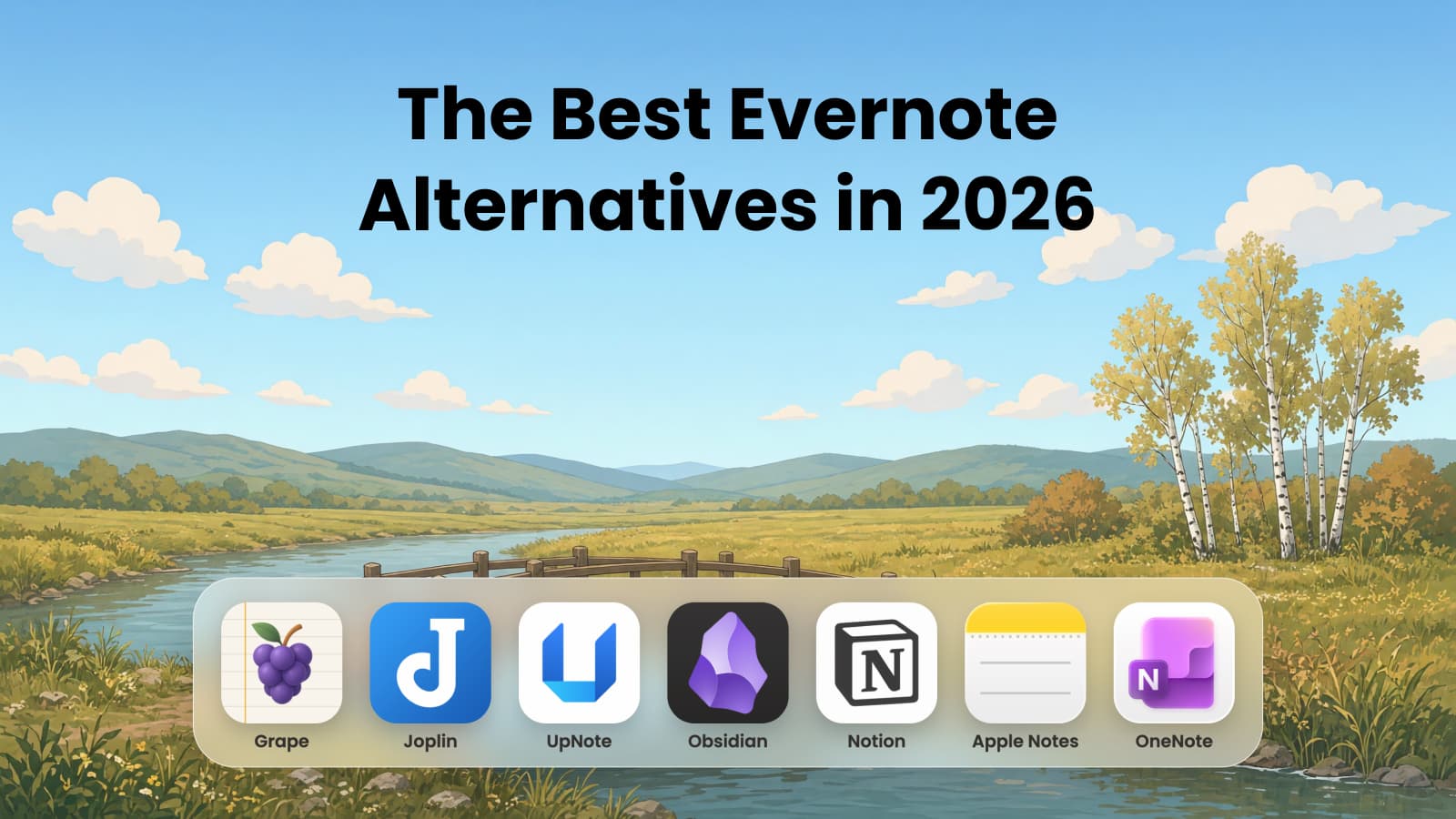
The Best Evernote Alternatives in 2026
Seven apps to move your Evernote notes to, compared on price, platforms, offline use, AI and what happens to an .enex file.
Read the post

September 18, 2026
The Best AI Note Taking App for Mac
Five tests to run on any Mac notes app in an afternoon: search by meaning, ask across notes, record a call, keep the notes local.
Read the post
September 11, 2026
Bear Alternative for Students
Bear costs less than Grape and is a fine place to type a lecture. What it will not do is anything with the note after class.
Read the post
08 Docs
Short Guides to the Setup
Installing, importing, turning on the AI, syncing and backups, a few minutes each.
2 min read
Check how much AI you have used
Where to find your usage, what the bars mean, and when your allowance resets.
Read the guide
4 min read
Free, Sync, Pro or Lifetime
What each plan includes and which one fits how you work.
Read the guide
2 min read
Customize the editor toolbars on desktop
The fixed toolbar, the floating selection toolbar and drag handles, each with its own switch.
Read the guide
10 Updates
Release Notes, Rarely
One short email when something ships. Nothing else.
Keep both in the same note.
Drawing canvas, screenshots, research and the reasoning behind a decision in one place, so the rationale survives longer than the file name.