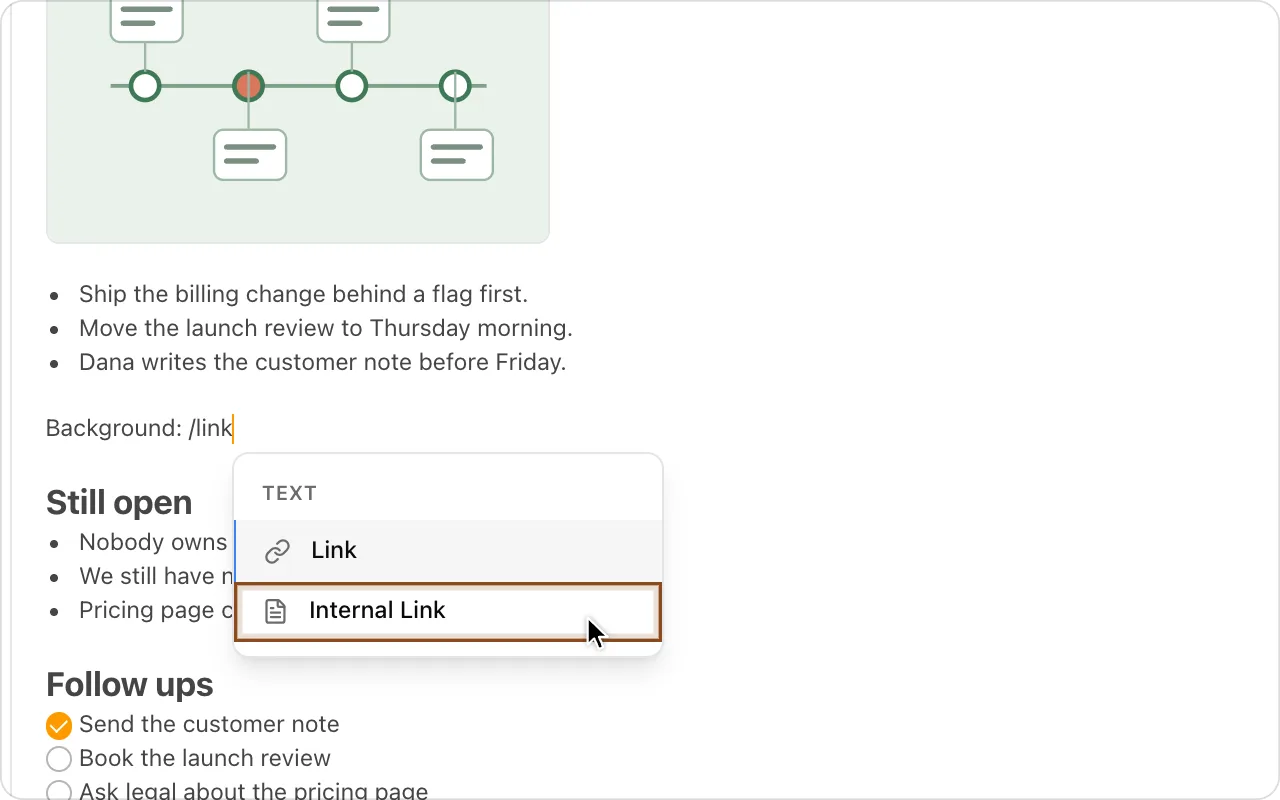
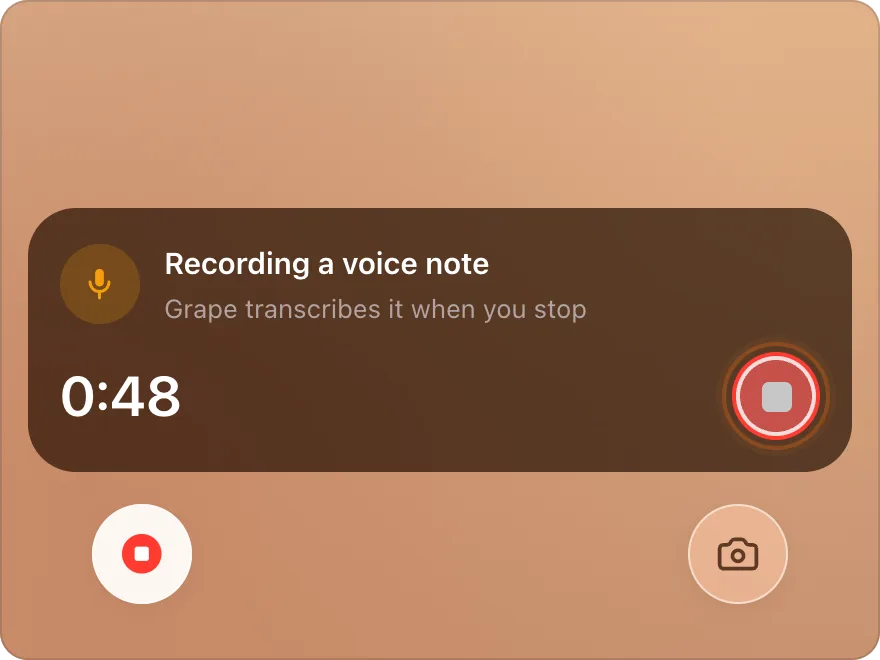
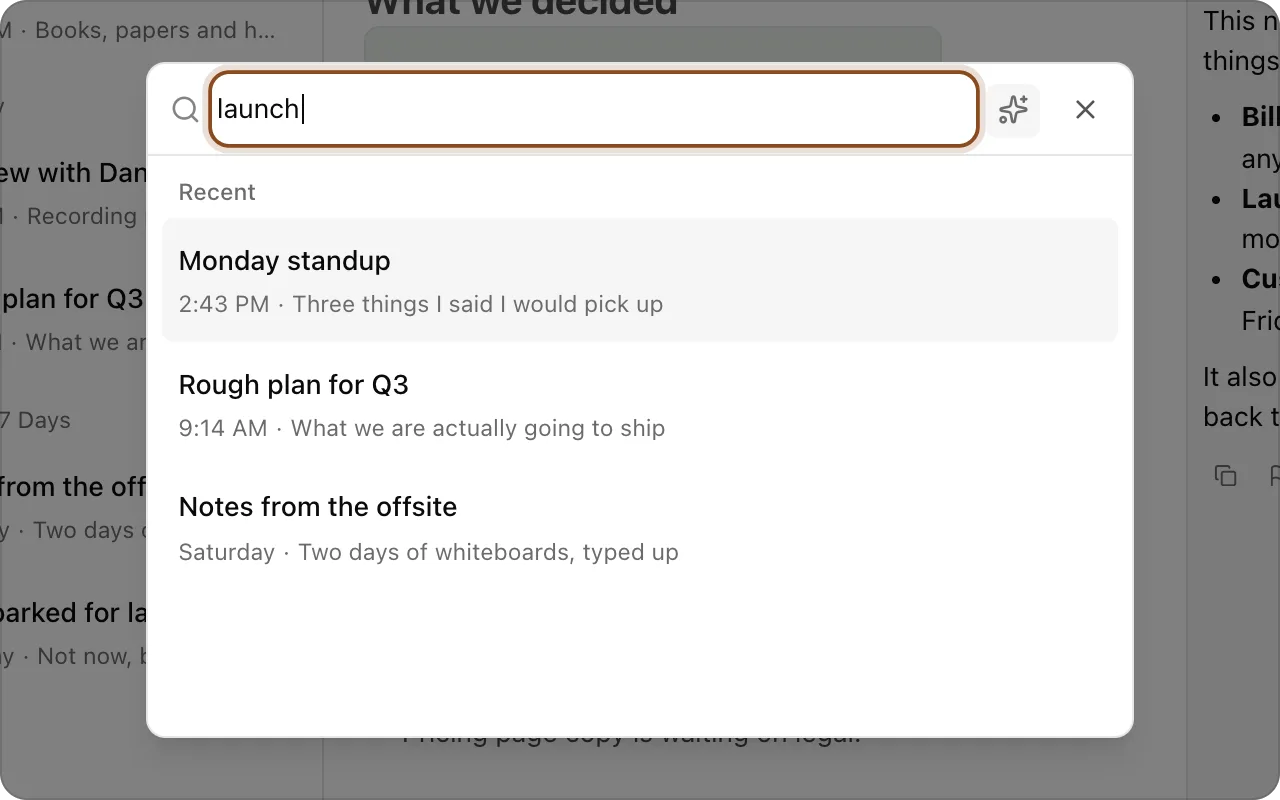
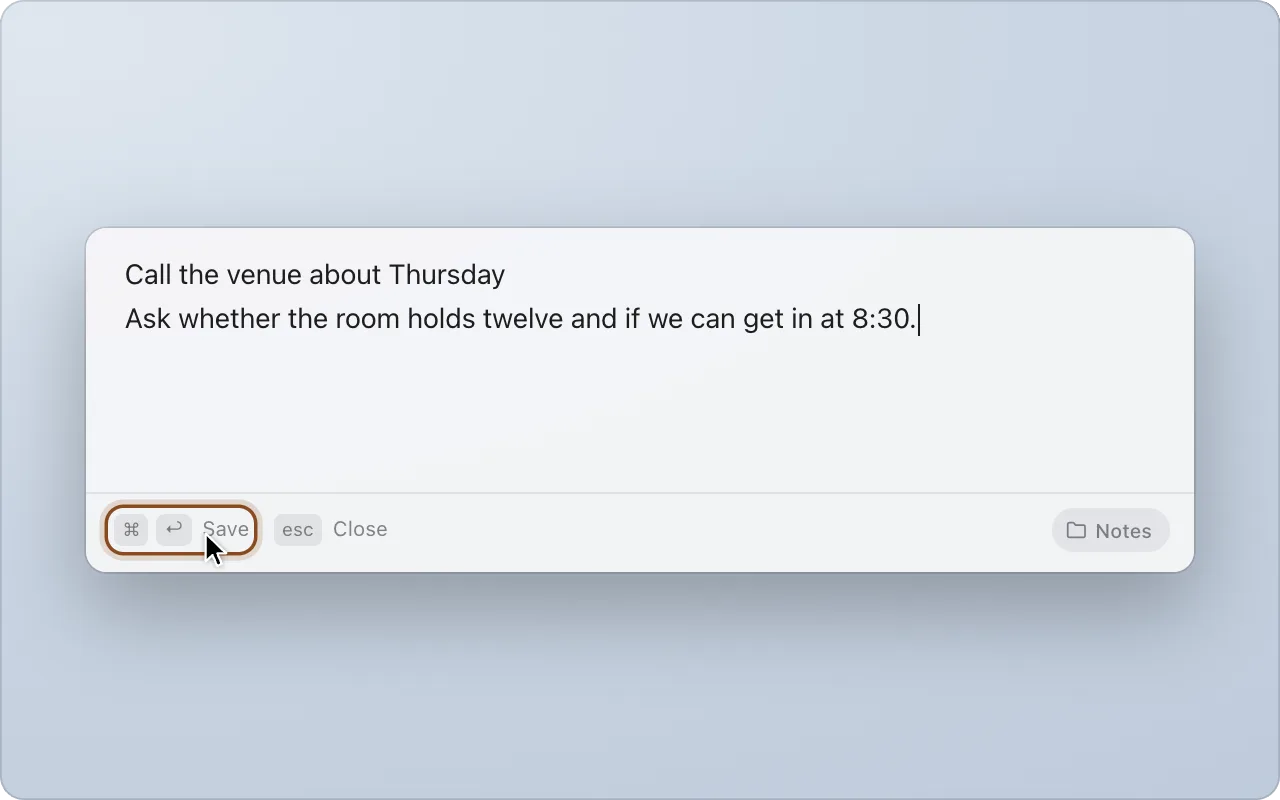
Grape shows a short tip now and then about something it can do: a shortcut, a gesture, a feature that is easy to miss. Each one says what to press and where, and links to the help article with the rest. Tips are on every plan, signed in or not.
When a tip comes up
A tip comes up a few seconds after you open Grape, one a day at most. It waits for a moment when nothing else has the screen, so a new install has its welcome tour to itself and the first tip comes the next time Grape opens.
The tips come in the same order for everyone, starting with the ones that change how the app gets used every day. A tip you have already read, when it came up or in Settings, does not come up again. Once you have read them all they stop coming up on their own, until an update brings new ones.
Each tip has a picture, the same one its help article shows. Grape fetches it from grape.cool as the tip comes up rather than carrying every picture inside the app, so a tip that comes up while you are offline shows its icon instead.
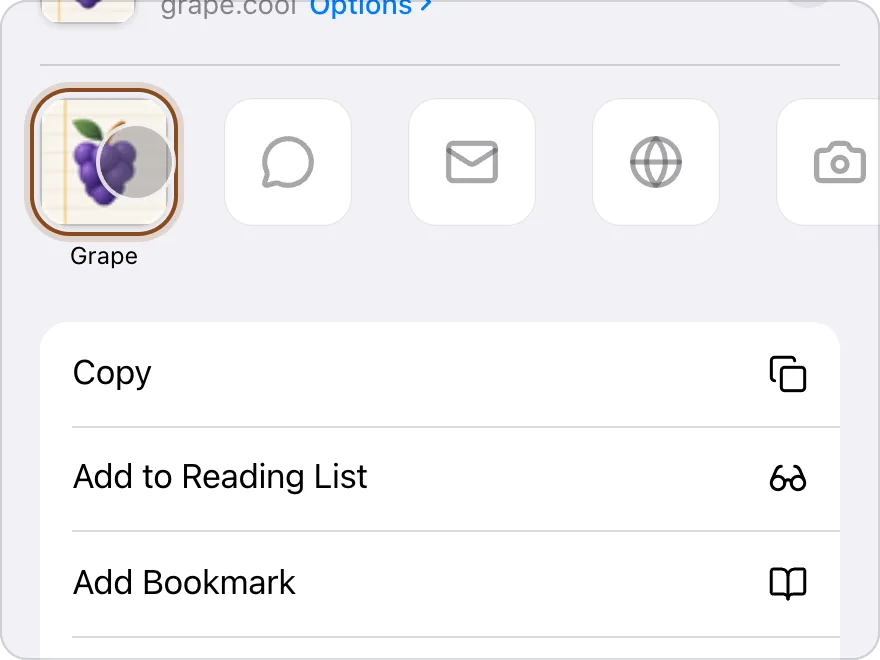
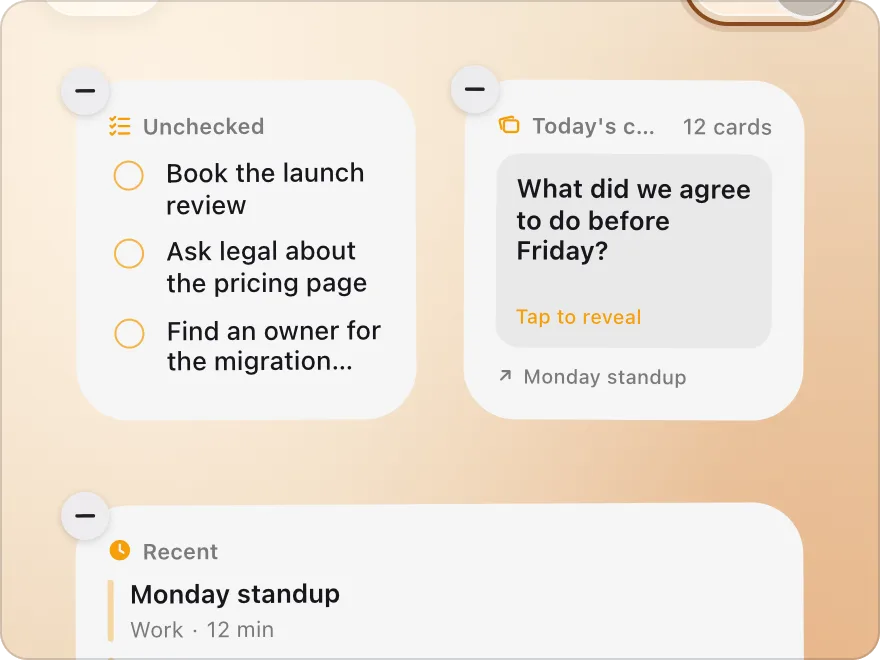
Each device has its own tips: the desktop app talks about shortcuts and the panels, the phone about the share sheet and gestures. An iPhone also gets tips for the widgets, the Lock Screen recording, Spotlight and the scanner, which Android does not have.
On desktop
The tip comes up in a card in the bottom left corner of the window, the corner the update notice uses, above it when both are up. It covers none of your notes and takes no keys, so you can keep writing with it there. Opening the app counts both starting it and coming back to its window after half an hour or more away, since a computer keeps Grape running for days. While a dialog, a menu or focus mode has the screen, or Grape is behind another window, the tip waits and comes up once that is over.
- Got it puts it away.
- Next tip shows the one after it.
- Learn more opens the help article in your browser.
- Don't show tips stops them coming up on their own.
A tip about a keyboard shortcut shows its keys the way your computer writes them, Cmd on a Mac and Ctrl on Windows and Linux.
On mobile
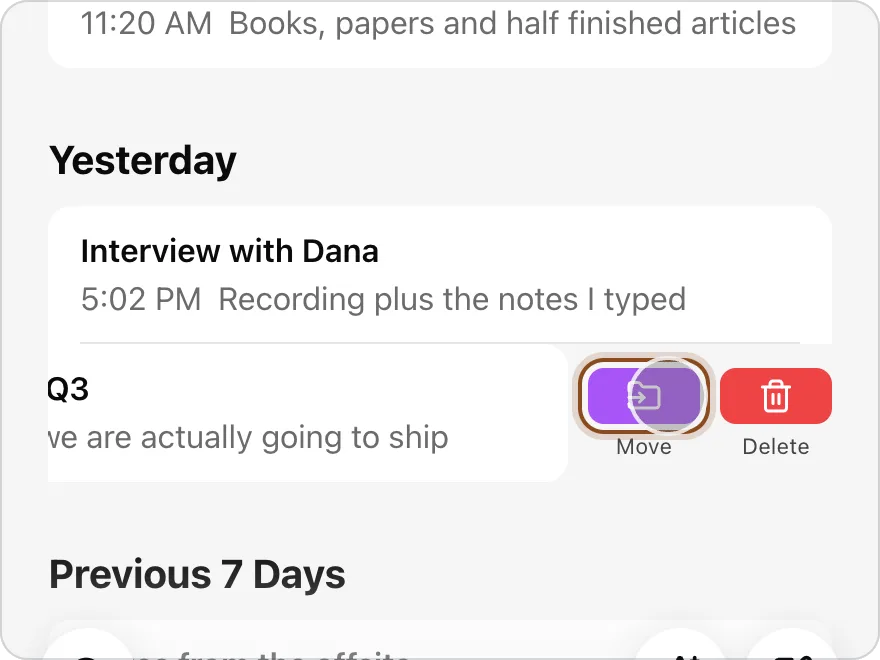
A sheet comes up over your folders or your notes list. It never comes up over a note you are writing, Settings, search or another sheet: it waits, and comes up when you are back on a list. Swipe the sheet left for the next tip or right for the one before, the way you would a card. Tap Got it or swipe it down to close it, and Learn more to read the help article. Don't show tips stops them coming up on their own.
Reading every tip
Open Settings and choose Tips, under Support. All tips lists every tip for your device in the order they come up.
- On desktop, click a tip to read it on a page of its own, with Previous tip and Next tip to move along and Back to return to the list.
- On mobile, tap a tip and it opens in the same sheet that comes up when the app opens. Swipe it left or right to go through the others.
A tip you read here counts as read, so it does not come up again on its own.
Turning them off or back on
Show tips when Grape opens, at the top of Settings, Tips, turns the tips that come up on their own off and on. Don't show tips in a tip turns the same switch off. Every tip stays in Settings either way.
The switch and which tips you have read stay on each device and are not part of sync, so the phone and the computer each keep their own: turning tips off on one leaves the other alone.